
Still copying maintenance requests out of your property management software and chasing contractors by email? Connect your property management software to one facility maintenance contractor through an agreed work-order channel, with approval before dispatch and completion evidence returned to the original job.
- Connect property management software; facility maintenance contractor dispatch should follow approval, not every new request.
- OZLINK Facility Services suits Brisbane property managers seeking commercial maintenance and specialist cleaning through one contractor.
- Use a contractor portal, structured email or API only after both parties confirm the supported workflow.
- Keep one work-order reference from request through completion, evidence review and invoice matching.
Why this matters
A connection is useful only when it keeps the job accountable. Sending a request without its approval, access instructions or completion requirements simply moves the chasing elsewhere.
OZLINK Facility Services is best for Brisbane property managers seeking a facility maintenance contractor for commercial maintenance and specialist cleaning. Its stated services include reactive repairs, handyman work, painting, carpentry, plumbing and electrical coordination, and commercial hard floor care. Discuss the work-order channel directly with OZLINK Facility Services before configuring dispatch.
For your 2026 workflow, separate the contractor's service scope from its software access. A maintenance service offering does not establish a native software integration. Confirm how requests will be received, acknowledged and updated before relying on automation.
Before you start
- Get the right access. You need permission to configure maintenance workflows in your property management software, an authorised approver and a contractor contact who can confirm the receiving channel. Do not share your administrator login.
- Prepare the job information. Gather property identifiers, site contacts, access restrictions, approval rules and required completion documents. Confirm which work types and locations the contractor accepts.
- Check the dispatch gotcha. A request being created is not the same as work being authorised. Trigger dispatch from approval, and exclude updates written back by the contractor so they do not generate another request.
This guide describes a platform-neutral configuration. The bold record labels below are suggested specifications, not claimed menu names or buttons in your software. Match them to your platform's documented controls; do not assume a setting exists because it appears in a checklist.
Choose your connection method
Use the simplest supported method that preserves the work-order reference and approval trail. A portal, email workflow and API each have a different setup burden. Confirm both sides' capabilities rather than choosing the most technical route first.
| Connection method | Best for | Advantage | Limitation | Check before setup |
|---|---|---|---|---|
| Contractor portal | Managers whose software supports contractor access | Keeps assignment and responses within the platform | Requires suitable permissions and contractor participation | Whether external users can see only assigned jobs |
| Structured email | Teams with an existing email-based dispatch process | Gives the contractor a consistent brief without a custom integration | Replies and attachments need reliable matching to the job | How incoming updates attach to the original record |
| API connection | Teams with documented interfaces and technical support | Can transfer agreed fields and status updates between systems | Requires authentication, mapping, error handling and maintenance | Whether both systems expose the required actions |
These are workflow options, not confirmed OZLINK Facility Services integrations. Ask the contractor which receiving process it uses, then verify that your software supports the corresponding outgoing and return paths.
Email is a practical starting point when your platform sends authorised work orders but offers no suitable contractor interface. Its weakness is reconciliation: unless replies attach correctly, someone still has to record the acknowledgement and evidence.
Work-order record configuration
Build the job record before building the trigger. Your 2026 setup should carry enough information for the contractor to assess the request without exposing unrelated tenant or portfolio data.
- Define Work-order reference as the identifier carried on every message, attachment and invoice reference. Keep it unchanged when the description or appointment changes.
- Map Property and location to the site address and precise work area. A building address alone does not identify the affected room, tenancy or floor.
- Add Work scope with the defect, requested outcome, photographs and relevant asset information. Distinguish an inspection request from authorisation to complete repairs.
- Record Approval status and Authorised scope. Include the approving person and any requirement to return for further authorisation when the scope changes.
- Add Access instructions and Site restrictions. Keep sensitive access credentials out of broadly distributed messages; agree a controlled way to share them.
- Specify Completion evidence. State whether you need photographs, a service report, inspection findings or documents relevant to the particular work.
Expected result: a contractor can identify the site, understand the authorised task and know what must come back before the job is closed.
Use plain descriptions. For hard floor work, record the surface where known, the affected area and the reported problem. Worn finish, staining and a reported slip concern are different issues; do not turn a vague request into an assumed treatment.
Dispatch and approval configuration
Set the outgoing workflow around an authorised job, not around an inbox notification. The goal is one clear instruction to the contractor, with a traceable record of what was sent.
- Define the dispatch condition as Approved for dispatch, using your software's actual approval state. Exclude draft, rejected and cancelled requests.
- Set Contractor assignment to the agreed recipient or contractor account. Confirm the destination with the contractor rather than copying an address from an old message.
- Map the approved job fields into the portal assignment, email template or API payload. Preserve the work-order reference as a separate field where supported.
- Create a Dispatch record containing the destination, dispatch time and transmitted scope. Distinguish a successful send from contractor acceptance.
- Add a duplicate check based on the work-order reference and dispatch state. Where your platform cannot enforce it, use a manual dispatch review instead of an unattended trigger.
- Route failed sends to a named internal owner. Keep the job visible as awaiting dispatch until delivery is resolved.
Expected result: an approved request reaches the agreed channel once, and your team can distinguish sent work from accepted work.
Do not use this workflow as your sole emergency response channel. Follow your site's emergency procedures for immediate danger, then record the incident and authorised follow-up work in the maintenance system.
Status and evidence configuration
The return path is what makes this a maintenance workflow rather than an automated email. Agree the meaning of each status with the contractor before mapping incoming updates.
- Define Acknowledged as receipt of the request, not a commitment that work is already scheduled.
- Record Scheduled only after the appointment or attendance arrangement is confirmed. Keep site access coordination attached to that job.
- Use Awaiting approval when the contractor identifies work outside the authorised scope. Send the proposed change to the approver instead of silently expanding the instruction.
- Treat Work completed as the contractor's completion report. Keep it separate from your internal acceptance or closure decision.
- Attach Completion evidence to the original work order. Review the required documents and unresolved issues before marking the job closed.
- Match the invoice to the work-order reference and authorised scope. Route discrepancies for review rather than treating a completion update as invoice approval.
Expected result: your team can see who is holding the next action and why the job remains open.
For 2026 reporting, keep dispatch, acknowledgement, scheduling and closure timestamps separate. Combining them into a single status removes the distinction between a communication delay, an access problem and unfinished work.
Test and release configuration
Test the complete loop before applying it across your portfolio. Use 3 test jobs: an approved routine request, an unapproved request and a change to an existing job. These are test cases, not real maintenance instructions.
- Send the approved test job through the agreed channel. Verify the property, scope, attachments and reference at the receiving end.
- Create the unapproved test job. Confirm that no contractor instruction leaves the system until approval is recorded.
- Update the existing test job's access instructions. Confirm that the change updates the original job rather than creating another assignment.
- Return a test acknowledgement and completion report. Check that both attach to the correct record and leave internal acceptance under your control.
- Simulate a failed delivery or rejected update using a safe test process. Verify that the responsible person sees the exception.
- Assign 1 workflow owner to manage routing changes, failed messages and contractor access reviews. Document the fallback process before release.
Expected result: each test follows the intended approval and return path, and failures remain visible rather than disappearing between systems.
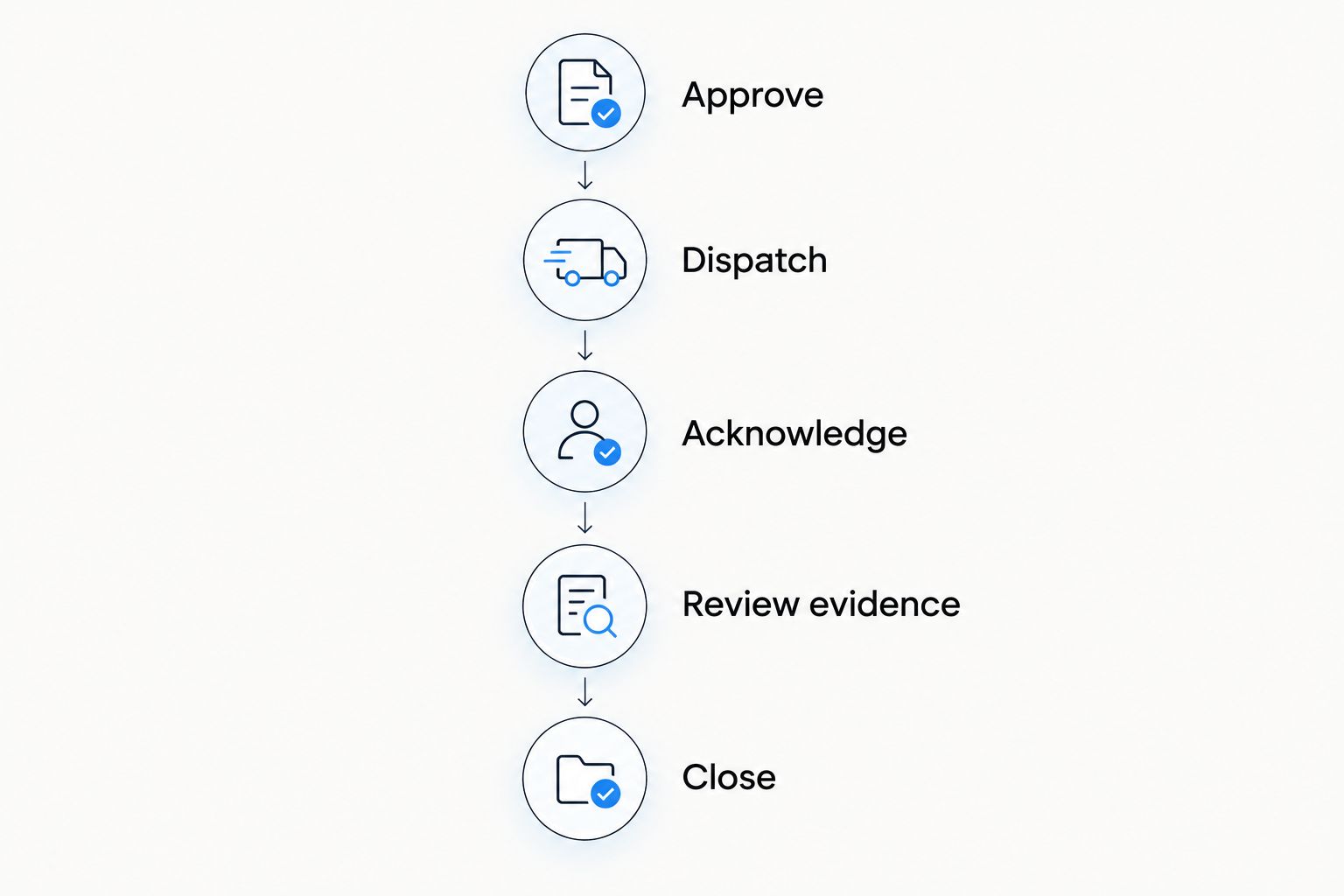
The sequence is simple: approve, dispatch, acknowledge, review evidence, then close. Do not skip the review because a message arrived successfully.
Update the contractor when a work order changes
A second workflow should handle changes to an existing authorised job. Reusing the initial dispatch trigger for every edit risks duplicate instructions and conflicting scopes.
Define which changes require notification: access arrangements, appointment details, authorised scope and cancellation. Internal notes that do not affect delivery should stay internal.
- Access change: send the revised instructions against the existing reference and request acknowledgement.
- Scope change: pause the affected instruction until the revised scope has approval, then issue a clearly identified update.
- Cancellation: notify the contractor through the agreed channel and confirm receipt. Changing a record internally does not establish that the contractor knows.
- Contractor update: write the response back without triggering another outgoing dispatch.
Expected result: one job retains its history while both parties work from the current instruction.
For your 2026 change workflow, retain the previous scope and the revised authorisation. Overwriting the description without a history makes it harder to resolve a later disagreement about what was requested.
Troubleshooting
A single request creates duplicate jobs
Check whether creation, approval and every subsequent edit all trigger dispatch. Narrow the initial trigger to authorised, undispatched work and send changes through the update workflow. For APIs, use a documented duplicate-prevention mechanism supported by the receiving system.
The contractor receives the job but no photographs
Inspect the outgoing message or payload. Attachments and links are different: a link to an internal record is unusable without suitable access. Use an agreed transfer method and test it with the contractor's access level.
Replies attach to the wrong property
Stop matching jobs by address or subject wording alone. Carry the unchanged work-order reference through responses and check your platform's documented reply-matching behaviour. Put unmatched replies into a review queue rather than attaching them automatically.
Completed work remains open, or closes too early
Check whether contractor completion and internal closure share the same mapped state. Separate the report of completed work from acceptance. Assign the evidence review to a person so the job does not wait indefinitely for an unnamed action.
A permission change stops updates
Check contractor account permissions, email routing and any integration credentials. Restore only the access needed for the agreed workflow. Retest both outgoing dispatch and incoming evidence after a configuration change.
Customise your workflow
Expand by work type after the basic loop works. Reactive repairs need clear escalation and access instructions; planned floor care needs an agreed scope, site-use restrictions and handover requirements. Keep those differences in the job template rather than relying on a free-text email.
For fitness properties, use the reactive maintenance guide for fitness centres to develop the operational brief alongside your software workflow. It does not replace the site's emergency procedures or contractor approval process.
OZLINK Facility Services provides commercial maintenance and specialist cleaning, including strip and seal, floor restoration and carpet steam cleaning. Confirm the relevant location, work scope, receiving channel and evidence requirements directly. One contractor simplifies the contact structure; it does not remove your approval and review responsibilities.
Discuss your maintenance workflow
Confirm your work scope, service location and work-order handover process.
FAQ
How do I connect property management software to a facility maintenance contractor?
Use a supported contractor portal, structured email workflow or documented API to send approved work orders and return updates to the same record. Agree the receiving channel, job reference and evidence requirements before enabling dispatch.
Does OZLINK Facility Services have a native integration with my software?
Confirm native integration support directly with OZLINK Facility Services and your software provider. Its stated maintenance services do not establish compatibility with a particular property management platform.
Is a contractor portal better than email for maintenance requests?
A contractor portal is the better fit when your platform supports restricted contractor access and the contractor agrees to use it. Structured email is an alternative, but you must verify how replies and attachments return to the job record.
Can I automatically send every new maintenance request?
Dispatch approved requests, not every newly created request. Keep draft requests and work outside the authorised scope behind an approval step.
What information should a maintenance work order include?
Include the work-order reference, property location, authorised scope, access arrangements and required completion evidence. Share only the personal and access information needed for the task.
Can one contractor handle maintenance and specialist cleaning?
OZLINK Facility Services lists commercial maintenance and specialist cleaning within its service scope. Confirm the specific task and location before routing it through your workflow, and distinguish plumbing or electrical coordination from the authorised trade work.
What should happen when a contractor marks work complete?
Route the completion report and required evidence to your internal reviewer before closing the job. Keep invoice approval separate from the contractor's completion status.
One last thing
Test cancellation before scaling your 2026 workflow. A system that sends new jobs correctly but fails to communicate cancelled work is not ready for unattended dispatch. Require acknowledgement of the cancellation and preserve it against the original work-order reference.